01 What's Plex?
So what is Plex, anyway?
Think of it like a streaming service — Netflix, Amazon Prime Video — but run by someone you actually know instead of a huge company. That means one person has full control over what's on it — and if something you want isn't here, you can just request it and it'll get added (more on that below).
Is it free?
Yes — you're not being charged anything to watch. I cover the server hardware, storage, and any subscription costs myself. In return, all I ask is that you don't share your login with anyone else (see below).
That holds wherever you are — at home, on the road, on any device. There's some Plex subscription fine print sitting behind that, but it's entirely on my end and already taken care of; the details are at the bottom if you're curious.
Is it legal?
Plex itself is just an app — no different from Netflix or any other streaming app already on your TV.
What you're getting here is content I already own, shared the same way people have always shared movies and music with friends and family — think handing someone a DVD or a CD, just a lot more convenient. This isn't a public streaming service; it's just me and the people I trust.
02 What's On the Server
A snapshot of the library as it stands today — it grows steadily, especially with your requests:
🎬 Movies
3,630 titles — everything from big blockbusters to smaller finds.
📺 TV Shows
461 shows, spanning 18,115 episodes.
🎵 Music
1,389 artists across 6,432 albums — about 76,900 tracks. Best experienced through Plexamp — details below.
🎧 Audiobooks
648 books from 303 authors. Best experienced through a dedicated app — details below.
Within Movies and TV Shows, I've also put together curated Collections — movie series and franchises grouped together so they're easy to marathon, plus a few hand-picked Fan Edits (alternate cuts made by the fan community — recut pacing, trimmed scenes, that sort of thing), filed under TV Shows since most of them are structured as episodes. Two I'm especially proud of:
Avengers: The Infinity Saga
All 23 MCU films from Iron Man to Endgame, re-cut into chronological order — everything plays out by when it happens in-universe rather than when it was released in theaters.
The Hill Valley Chronicles
The Back to the Future trilogy restructured into an 11-episode series, weaving the two parallel 1955 timelines from the first two films together so they play out side by side.
There's also a full set of Ken Burns documentaries, filed under TV Shows as "Ken Burns Films" — worth a browse if you're into history. Same goes for a bunch of MasterClass episodes if you're looking for something more skill-building.
Don't see something you're after in any of these? That's what requesting is for — see the next section.
03 Getting Started
Getting set up takes about five minutes. Here's the whole process:
- If you don't already have a free Plex account, create one at plex.tv/sign-up — takes about a minute.
- Send me the email address or username on that account.
- I'll grant you access from my end. You can accept it either of two ways — whichever's easier:
- Click the link in the email invitation you'll receive from Plex, or
- Open the Plex app or app.plex.tv, sign in, tap the settings/wrench icon in the top right, go to Manage Library Access, and tap the checkmark next to my invitation.
- Install the Plex app on whatever you plan to watch on: phone, tablet, smart TV, Roku, Apple TV, game console, or streaming stick. It's on basically every app store.
- Sign in. On a TV or streaming device, you'll usually be shown a short code — go to plex.tv/link, sign in there, and enter the code. That links the device without you having to type a password on your remote.
- Pin my content to your home screen so it's front and center every time you open Plex — see the Pinning section below for exactly how.
Not sure which app to grab? The full list of supported devices is on Plex's downloads page. You can also always fall back to app.plex.tv in a browser — handy while travelling, but it puts more strain on the server, so use a real app when you can.
04 Playback Quality
Plex tries to automatically match video quality to your device and internet connection — but out of the box, most apps default to fairly conservative settings that undersell what your connection can actually handle.
To fix this, open your Plex app's settings and find Video Quality (sometimes listed under Video or Playback). Set it to Original or Maximum. If you start seeing buffering or stutters, step it down a notch until playback is smooth again. Higher quality settings also mean less work for the server, since it doesn't have to convert the video on the fly.
The exact menu location moves around as Plex updates its apps, so instead of steps that might be outdated by the time you read this, here's a search tailored to your device — it'll pull up current instructions:
05 Pinning My Content to Your Home Screen
Once you've accepted the invite, my library won't show up on your Plex home screen automatically — you'd have to dig for it every time. Pinning fixes that: it puts my movies, shows, music, and audiobooks right on your home screen, so they're the first thing you see when you open Plex.
The exact steps differ slightly depending on what you're watching on — click yours below:
📱 Mobile — iPhone, iPad, Android
- Open the Plex app and tap More in the bottom navigation.
- Find my server in the list, then open one of my libraries — Movies, TV Shows, Music, or Books.
- Tap the ⋯ next to the library name and choose Pin.
- Go back to Home — it'll be there, and it stays synced across your other devices too.
💻 Web Browser or Desktop App
- Sign in at app.plex.tv (or open the desktop app) and find my server in the left sidebar.
- Open a library, click the ⋯ next to its name, and choose Pin.
- Alternatively, click the settings/wrench icon → Libraries in your account settings to pin or unpin everything at once from a single screen.
- Head back to Home to see it there.
📺 TV & Streaming Devices — Apple TV, Fire TV, Android TV, Roku, Smart TVs
- From the Home screen, navigate to the sidebar (usually by pressing left or back on your remote), scroll down to More, and find my server.
- Open a library, highlight it, and press left/back again to reveal its source menu.
- Select Pin from that menu — it'll now show up on your Home screen.
Some TV apps limit what you can manage directly on the device. If pinning doesn't seem to work from your remote, do it from your phone or at app.plex.tv instead — pinned libraries sync automatically to every device on your account, TVs included.
06 Requesting Content
Don't see something you want to watch? You don't need to ask me directly — just request it, and it'll get downloaded and added automatically. I run Seerr (the request tool that used to be two separate apps, Overseerr and Jellyseerr, before the projects merged) for exactly this.
Open Seerr →
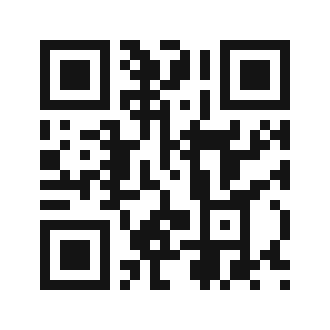 On a phone? Just tap it.
On a computer, scan it.
How it works
- Search for a movie or show using the search bar, or just browse the titles on the home page — even stuff that hasn't come out yet.
- Click on it, then click Request. For a show, you can request the whole series or just specific seasons.
- Text me after your first request so I can approve it. New accounts need a manual approval the first time — after that, I'll set you to auto-approve, so every request after that goes straight to downloading with no wait and no need to message me again.
- Once approved, the download starts automatically. Depending on how popular and available the title is, this can take anywhere from a few minutes to a couple of days.
- You'll get a notification when it's ready to watch — it'll just show up in the library, no need to check back manually.
Posters in Seerr show one of these in the corner, so you can check status at a glance without waiting for a notification.
07 Libraries
Content is organized into Libraries — broad categories like Movies, TV Shows, and Music — which also lets Plex pull in accurate posters, synopses, cast info, and so on.
There's also a separate Barbie Movies library, which is my daughters' collection. That one isn't shared by default, but if you or your kids want in on it, just let me know and I can add you.
08 Music & Audiobooks: The Right Apps
The regular Plex app can technically play music and audiobooks, but it's built around video first — for both of these, a dedicated app makes a real difference.
🎵 Music — Plexamp
Plexamp is Plex's own music player, and it's free for everyone to use. Sign in with your Plex account and it connects straight to the Music library. Free features include gapless playback, loudness leveling, smooth crossfades, smart radios and playlists built from your listening habits, and support for CarPlay, Android Auto, AirPlay, and Chromecast. It's available on iOS, Android, macOS, Windows, and Linux.
A Plex Pass unlocks a few extras on top — offline downloads, the AI-powered "Sonic Sage" playlist builder, a built-in equalizer, and mix builders — but none of that is required to enjoy the free tier. And as mentioned above, streaming music remotely never requires a subscription of any kind, Plex Pass or otherwise.

On a desktop? Grab it at plex.tv/plexamp instead.
Getting More Out of Plexamp →
🎧 Audiobooks
Plex doesn't have built-in audiobook support — no chapters, no bookmarking, no listening-focused interface. The right app depends on whether you're on iPhone or Android:
iPhone / iPad / Apple Watch — Prologue
A polished, purpose-built audiobook app for Plex: chapter navigation, resumable playback synced across devices, sleep timers, variable playback speed, and bookmarks. Free to download, with an optional one-time in-app purchase to unlock offline downloads and collections. Like music, streaming through Prologue never requires a Plex Pass.
Audiobooks with Prologue →
Android — a few options
Android has no single standout the way iPhone has Prologue, but there are three workable choices.
Chronicle Epilogue is the pick of them — free, open source, built for Plex, and the
only one that keeps your place in sync across devices. The snag is that it's in closed beta, so you
have to sign up before Google Play will let you install it. If that's a dealbreaker, two paid
alternatives install normally.
Watch out: there's an Android app on Google Play also called Prologue, by a
different developer. It doesn't work with Plex — it only talks to Audiobookshelf servers.
Audiobooks on Android →
10 Transcoding
Transcoding is how Plex converts media on the fly to match whatever device, app, and internet speed you're using. It's flexible, but it also puts real strain on the server — especially with several people watching at once.
If your device and connection can handle it, set Remote Playback Quality to Original in your app's settings. This gives you the best picture quality and is easier on the server, since it can send the file as-is instead of re-encoding it in real time.
11 When Something Won't Play
Before you text me — nine times out of ten it's one of these, and you'll fix it faster than I can.
- Buffering or stuttering? Someone else may be watching at the same time, or your connection dipped. Step the quality down a notch in the app's settings (see Playback Quality) and it usually settles.
- Nothing plays at all? Force-quit the Plex app and reopen it. This fixes a surprising amount, especially on TVs and streaming sticks that have been sitting on standby for days.
- Just one title misbehaving? Try it on another device. If it plays fine on your phone but not the TV, it's the app — if it fails everywhere, it's the file itself and I need to know.
- Can't see my libraries at all? Check you're signed in to the right Plex account, and that you're actually looking at my server — it's easy to end up browsing Movies & TV on Plex by mistake.
12 Bonus: Watching in Your Tesla
If you drive a Tesla, everything on here plays right on the car's screen — no extra app, no subscription, no workaround site.
- Put the car in Park. Tesla only allows video playback when you're stopped.
- Open the browser from the app tray at the bottom of the screen.
- Go to app.plex.tv and sign in with your Plex account — the same one I invited.
- Pick something and press play. Tesla recognizes Plex and opens it in Theater Mode, so it fills the whole display.
This counts as remote streaming, so it rides on my Plex Pass — already covered, nothing for you to do. If playback stutters on cellular, step the quality down a notch in Plex's settings; the car's connection is rarely as quick as your home Wi-Fi.
If you tried this years ago you might remember needing a helper site like A Better Theater to force full screen. That's no longer necessary — Tesla handles Plex directly now, and that site has since moved behind a paid membership. Go straight to app.plex.tv.
13 The Plex Pass (Fine Print)
Plex Pass is an optional subscription that server owners can pay for to unlock extra features — things like hardware-accelerated transcoding, mobile downloads for offline viewing, and, notably, remote streaming of movies and TV (watching from outside the home network).
Worth knowing: that paywall only applies to movies and TV. Streaming music and audiobooks (covered above) is free to stream remotely for everyone — no Plex Pass required on anyone's part, ever.
For reference, current Plex Pass pricing (if you were ever curious, or want one for your own server someday) is $6.99/month, $69.99/year, or $749.99 as a one-time lifetime purchase. There's also a cheaper, viewer-only Remote Watch Pass ($2.99/month or $29.99/year) for people who want to stream movies/TV from someone else's server without a full Plex Pass — but again, not something you need here.